What Can Notion AI Actually Do? 10 Power Features You Need to Know
By SM Mehedi Hasan
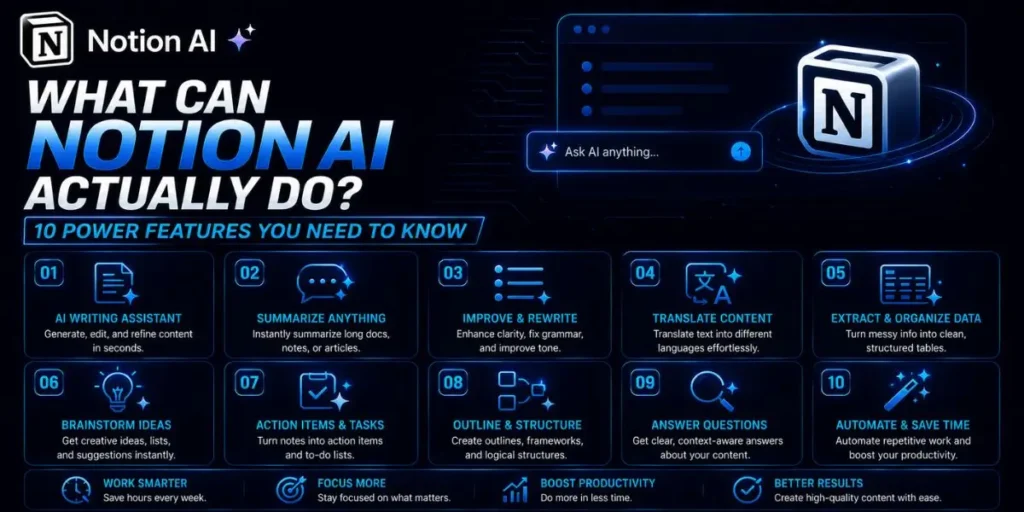
Notion AI is a built-in workspace assistant that reads, writes, and analyzes your existing pages.
Unlike standard chatbots, it uses your team’s live data to summarize meetings, extract action items, generate content, and automate database entries without leaving your documents.
I was honestly pretty skeptical when Notion first announced its AI integration. Dropping a text generator into a productivity app felt more like trend-chasing than something people would genuinely use every day.
But after relying on it for actual client projects over several months, my opinion changed quite a bit. The thing is, Notion AI works differently from most standalone AI tools people are used to.
Instead of forcing you to jump between tabs, copy documents around, and constantly explain context, it operates directly where your work already lives.
If Notion is already central to your workflow and you’re questioning the real value of its AI beyond just generating text, keep reading. This guide skips theory and highlights hands-on workflows that can genuinely save time and effort.
Table Of Contents
ToggleHow does Notion AI integrate into your workflow?
Notion AI works directly inside your existing documents, databases, notes, and project pages. That sounds simple at first, but honestly, it changes how you interact with AI tools altogether.
Most people assume AI writing tools produce generic outputs, but actually, context changes everything.
Since the assistant can read the page you’re already working on, it understands ongoing projects far better than a blank chatbot window ever could.
While organizing client documentation in Notion, I noticed the AI could reference existing project details surprisingly well because all the information already existed in the same workspace.
I didn’t need to repeatedly explain the project goals. And that matters more than most users expect. Many AI mistakes occur because the system lacks surrounding context.
But since Notion AI reads the active page content before generating responses, it usually stays aligned with the overall topic instead of drifting into unrelated answers or random filler.
1. How does instant summarization tame information overload?
This feature condenses large blocks of text into short, digestible summaries in just a few seconds.
It’s especially useful for meeting transcripts, research-heavy documents, brainstorming sessions, or long-form notes that are difficult to scan manually.
I noticed this feature works best when I need quick clarity from messy internal discussions. You can simply highlight a chunk of text, click “Summarize,” and the AI pulls out the main ideas, decisions, and recurring themes almost instantly.
So instead of rereading five pages of scattered meeting notes, you get the core takeaway right away.
This works well, except when the original notes are extremely chaotic. If the source material lacks any structure, the summaries can become overly broad or miss important distinctions between topics.
In My Experience
Honestly, when I first tried summarizing a 45-minute brainstorming transcript, the output felt too vague to be genuinely useful.
The AI kept blending separate discussion topics because the raw notes were essentially a single giant wall of text.
So here is what actually happened.
I went back, added simple paragraph spacing and a few loose bullet points to separate different discussion segments, then reran the summary command. The difference was immediate.
The AI suddenly identified decisions, concerns, and follow-up ideas much more accurately.
Since then, I have always spent a minute cleaning raw notes before using the summarization tool. That tiny bit of prep dramatically improves the final output.
Pro Tip: Before summarizing long meeting transcripts, quickly separate unrelated discussion topics using spacing or bullet points. Even lightweight formatting helps Notion AI identify context shifts more accurately.
2. Can Notion AI act as your personal creative partner?
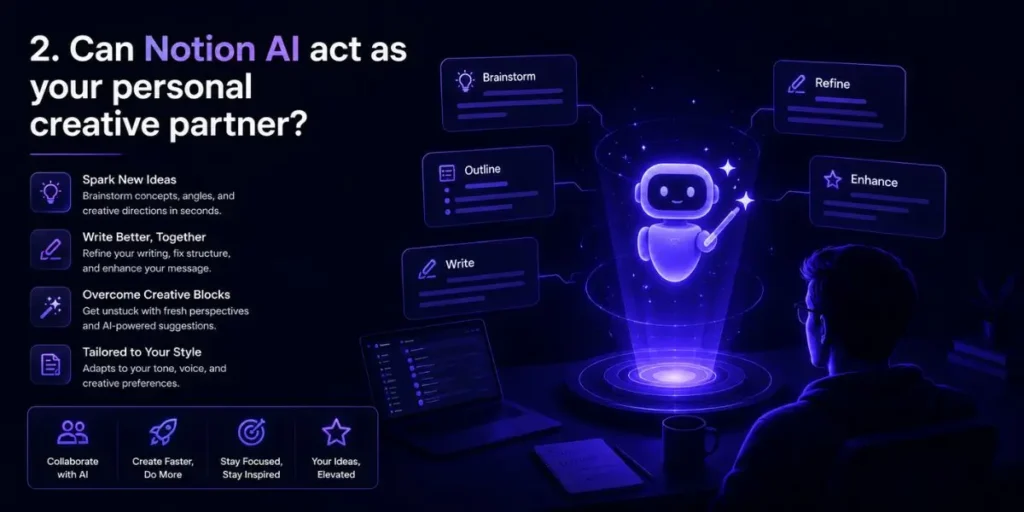
Yes, and honestly, this is one of the platform’s more underrated features.
Notion AI can generate idea variations, content angles, campaign concepts, naming ideas, outlines, and brainstorming prompts based on the information already sitting on your page. Instead of starting from zero, you begin with momentum.
While building content plans for a client project, I pasted their rough brand positioning notes into a page and asked the AI for topic suggestions. It returned multiple usable angles I genuinely had not considered before.
Some ideas were weak. A few felt repetitive. But several were surprisingly solid.
And that’s kind of the point.
Creative work usually improves when you have something to react to instead of staring at a blank screen waiting for inspiration to magically appear.
Unlike what most reviews say, I don’t think Notion AI replaces human creativity at all. What it actually does well is reduce the mental friction of getting started.
Especially during rough brainstorming sessions where your thoughts still feel half-formed.
Plus, it helps surface patterns you might overlook when you’re too close to the project yourself.
3. How do you turn bullet points into prose?
Notion AI can expand rough outlines into complete drafts almost instantly. You write a few bullet points, highlight them, then use the “Draft” or “Expand” option to turn short fragments into structured paragraphs.
If you’re handling constant reports, internal updates, or client communication, this feature saves a surprising amount of mental energy. Sometimes getting started is harder than the actual writing itself.
Compared to what I’ve tried before, having this feature directly inside the editor feels much smoother than switching over to a separate AI tab every few minutes. The workflow stays uninterrupted.
So instead of obsessing over sentence transitions and filler wording, I usually focus on the important ideas first. Then I let the AI build the connective structure around them.
But actually, the quality still depends heavily on the clarity of your bullets.
If your outline is vague, the generated draft tends to be vague as well. Short prompts work best when they already contain clear intent, direction, and context.
4. How does action item extraction work?
Notion AI can automatically scan meeting notes and identify tasks, follow-ups, and commitments mentioned throughout the conversation. It then converts those items into structured checklists you can review or assign manually.
For teams dealing with constant meetings, this removes much of the annoying administrative cleanup afterward.
Manually digging through pages of notes searching for responsibilities has always been one of the most frustrating parts of project management for me. Especially after back-to-back calls, when details start to blend together.
So instead of rereading everything line by line, you can run the AI extraction command and immediately see the major follow-up items separated into actionable tasks.
This works especially well when conversations contain clear commitments, deadlines, or ownership statements.
In My Experience
The thing that surprised me most was how well the system handled indirect task references during real conversations.
During a recent client meeting, someone casually mentioned, “I’ll send over the updated brand assets by Tuesday.” Nobody formatted it like an official task. There wasn’t even a checklist involved.
But the AI still recognized it as an action item and added it correctly to the summary.
What I didn’t expect was how accurate it stayed throughout a long discussion with multiple speakers talking over each other.
It missed one highly technical engineering task buried inside a jargon-heavy discussion, but it correctly identified almost everything else.
That balance felt realistic. Not perfect. But genuinely useful enough to reduce manual cleanup afterward.
5. Can it handle language translation and simplification?
Notion AI can translate content into multiple languages while also simplifying technical or industry-heavy writing into plain, beginner-friendly explanations.
That combination becomes extremely useful when you’re working across teams with different experience levels or language backgrounds.
Honestly, I expected the translation feature to feel awkward for professional communication. A lot of AI translation tools sound overly robotic once you move beyond simple sentences.
But actually, Notion AI handles business language better than I expected. When I tested it with a dense paragraph about software architecture, I asked the AI to explain it “like I’m new to the topic.”
Instead of dumping technical definitions everywhere, it rewrote the explanation using simpler comparisons and clearer wording.
So rather than sounding like a textbook, the final explanation felt more conversational and readable.
This works especially well for internal documentation, onboarding notes, and client communication, where technical jargon can easily overwhelm non-specialists.
In My Experience
After using this for a week, I noticed simplification prompts worked far better when the original text already had decent structure. If the paragraph itself was messy or overly abbreviated, the rewritten version could still be confusing.
One workflow I use constantly is translating technical SEO notes into plain-language client summaries. I paste my raw audit findings into Notion, highlight the section, and ask the AI to simplify it for non-technical readers.
Most of the time, it removes enough complexity to make the explanation understandable without stripping away the important meaning.
Pro Tip: Instead of only asking the AI to “simplify” text, specify the audience directly. Prompts like “Explain this to a beginner marketer” or “Rewrite this for a non-technical client” usually produce more natural results.
6. How effectively does it rewrite and adjust tone?
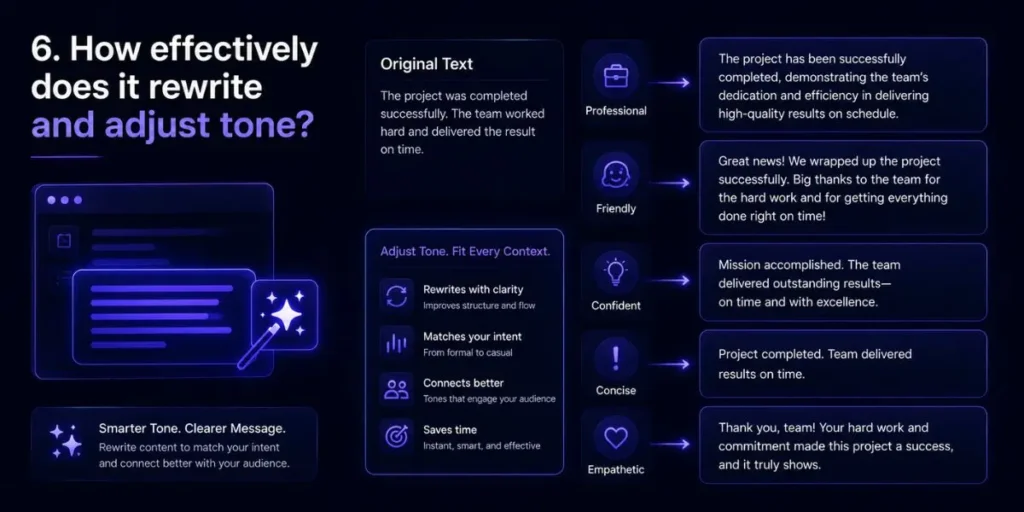
Notion AI can rewrite existing content for completely different audiences with a single prompt.
You can take something formal, technical, or awkwardly written and quickly reshape it into a more polished version without manually rewriting everything.
When I was editing an internal project memo recently, I asked the AI to rewrite it as a client-facing update. The original version sounded dry and overly technical. The rewritten version felt noticeably clearer and easier to read.
And honestly, that kind of tone adjustment saves more time than people realize.
Many writing problems are not about bad information.
The issue is usually delivery. Sometimes the message sounds too stiff. Other times, it becomes overly casual and loses clarity.
So if you regularly write emails, reports, proposals, or team updates, this feature acts like a built-in editing layer that helps smooth out the tone before you send anything.
Compared to standalone AI tools, having tone rewriting directly inside the same workspace also makes the editing process feel faster. No constant copy-pasting. No switching tabs every few minutes.
In My Experience
I ran into an issue when rewriting highly opinionated content with strong personality-driven language. The AI occasionally made everything sound too neutral and polished.
So here is what actually happened.
I tested it on a casual founder update that intentionally used conversational phrasing and sharper opinions. After rewriting, the content became cleaner, but it also lost some of the original personality that gave the message a human feel.
Since then, I usually treat tone rewriting as a first draft assistant rather than a final editor. I let the AI improve structure and readability first, then I manually add back the natural phrasing afterward.
7. What are Custom AI Blocks?
Custom AI blocks are reusable prompts you can place directly in Notion templates, pages, or databases. Every time you create a new page using that template, the AI automatically runs the predefined instructions for you.
At first glance, this sounds like a small automation feature. But once you start using database templates heavily, the time savings become surprisingly noticeable.
For example, I built a recurring client report template that uses AI to automatically summarize completed tasks into a short executive overview.
Instead of manually writing the same type of summary every week, the block handles the repetitive groundwork instantly.
The thing is, these blocks work best when your database structure is already organized properly. Clean properties and consistent page formatting make the generated output much more reliable.
In My Experience
One thing that caught me off guard was how effective these blocks became once I connected them to CRM workflows.
I created a custom AI block that analyzed the “Last Contacted” notes in my CRM database and automatically drafted a follow-up email whenever I opened a contact page.
At first, I assumed the drafts would feel generic. But because the AI could reference previously stored notes in the database, the emails usually felt context-aware enough to edit quickly rather than rewrite from scratch.
This works well, except when the stored notes are too short or inconsistent. If the CRM entries lack detail, the generated drafts become noticeably weaker.
8. How does AI autofill work in databases?
Notion AI can automatically fill database properties by analyzing the content stored inside each page.
Instead of manually tagging, categorizing, or summarizing entries one by one, you can create AI-powered properties that extract the information automatically.
If you’re managing large databases, this feature reduces the need for extensive repetitive data entry.
When I started using it for my reading database, I configured AI properties to automatically identify article themes, sentiment, and major takeaways.
I simply pasted the article content into the page, and the database fields populated themselves within seconds.
So instead of manually sorting everything, the system handled most of the organizational work for me.
Most people overlook this feature because it sounds administrative. But actually, database autofill becomes extremely powerful once your workspace starts scaling beyond a few dozen entries.
In My Experience
Compared to similar tools I’ve used, Notion’s AI autofill felt more flexible because the prompts can be customized around your exact workflow.
I tested it inside a lightweight CRM setup where the AI automatically categorized leads based on conversation notes. It performed surprisingly well when the notes were detailed and structured clearly.
What I didn’t expect was how sensitive the feature was to inconsistent formatting. Short, messy notes produced weaker classifications almost immediately.
So now I treat autofill as an enhancement layer, not a replacement for clean data practices.
Pro Tip: Keep your database property instructions as specific as possible. Broad prompts like “analyze this page” often yield inconsistent outputs, whereas focused prompts like “identify the primary marketing topic” yield cleaner results.
9. Can you chat with your entire workspace?
Yes, Notion’s Q&A system lets you search your entire workspace rather than limiting responses to a single page. The AI scans connected databases, notes, and documents to locate information based on your question.
When I was recently searching for an old vendor agreement, I asked the workspace assistant for the contract instead of manually digging through folders.
Within seconds, it returned the correct page link directly from an archived project database.
And honestly, that felt much faster than traditional keyword searching.
The feature becomes especially useful once your workspace grows large enough that remembering exact page locations becomes difficult.
But actually, search quality depends heavily on how organized your workspace already is.
If your databases use vague naming conventions, inconsistent tagging, or scattered documentation practices, the AI can struggle to consistently identify the right information.
In My Experience
What I didn’t expect was how much workspace organization affected the quality of AI search results.
I tested the Q&A feature inside two separate workspaces. One had structured naming conventions and organized databases. The other was full of random page titles, duplicate notes, and inconsistent tagging.
The difference was obvious almost immediately.
In the organized workspace, the AI quickly surfaced accurate answers. Inside the messy workspace, it occasionally returned unrelated pages because the surrounding context was weak.
So while the feature itself works well, good organizational habits still matter a lot behind the scenes.
10. How does it help with coding and formatting?
Notion AI can quickly format messy text into structured layouts such as Markdown tables, bullet lists, code blocks, and organized documentation sections.
It also handles basic coding assistance for common scripting and markup tasks.
Most people assume these AI tools only help with writing paragraphs, but actually, their formatting capabilities are surprisingly practical in technical work.
I frequently use it when cleaning raw datasets, formatting SQL snippets, or structuring HTML examples inside technical documentation pages.
Instead of manually organizing everything line by line, I can paste rough content into Notion and ask the AI to structure it properly.
So the workflow feels less interrupted.
This works especially well for lightweight coding support and documentation cleanup. For advanced debugging or production-level engineering work, though, dedicated development tools are still much stronger.
In My Experience
Unlike what most reviews say, I don’t think Notion AI is trying to compete with full development environments.
Where it actually helps is speed and convenience.
During documentation work, I often paste rough CSV exports or unfinished SQL snippets into a page and ask the AI to automatically clean the formatting. That alone removes a surprising amount of repetitive editing work.
One limitation I noticed pretty quickly was the code’s reliability for more advanced logic. pting usually worked fine. More complex code sometimes needs manual corrections afterward.
So I treat it more like a fast formatting assistant than a full coding solution.
Workflow Example: The Automated Meeting Machine
Here is a realistic example of how several Notion AI features can be combined to streamline a workflow during busy workdays.
Cause:
You have multiple meetings stacked back-to-back, with almost no time afterward to manually organize notes.
Action:
Use Notion AI to automate cleanup, summarization, and follow-up directly in your workspace.
Result:
You end up with organized summaries, extracted action items, and draft follow-up emails in just a few minutes, instead of spending half an hour doing everything manually.
1. Dump raw transcripts
Paste the raw transcript from Zoom, Otter.ai, or another meeting recorder directly into a new Notion page.
The reason this step matters is simple. Notion AI needs source material before it can identify tasks, summarize decisions, or generate follow-ups accurately.
Once the transcript is inside the page, the AI can immediately start analyzing the conversation context.
2. Extract action items
Type /ai and select “Find action items.”
The AI scans the conversation and identifies responsibilities, deadlines, and follow-up commitments mentioned throughout the discussion.
After running the command, you should see a structured checklist of tasks rather than a single giant wall of meeting text.
3. Generate a summary
Add a Custom AI block near the top of your meeting template that automatically creates a short summary whenever a new meeting page is created.
This helps because long transcripts become difficult to revisit later, especially during busy weeks filled with client calls.
Once generated, the summary should provide a quick overview of major decisions, blockers, and next steps in just a few bullet points.
4. Draft the follow-up
Prompt the AI with something like:
“Write a follow-up email based on the summary and action items.”
At this stage, the AI uses the meeting context already stored on the page to automatically draft a cleaner follow-up message.
So instead of starting from a blank screen after every meeting, you already have a workable draft ready for editing.
Common Pitfalls for Beginners
Vague Prompting
Beginners often ask the AI for something broad like “write a blog post” without providing tone, audience, structure, or formatting instructions. The thing is, AI tools respond heavily to the quality of the prompt itself.
If the instructions stay vague, the output usually becomes generic too.
A better approach is giving the AI clear constraints upfront, including:
- tone
- target audience
- desired length
- formatting style
- examples when necessary
That extra context dramatically improves the final result.
Trusting Fact Retrieval Blindly
Some users assume Notion AI functions like a live search engine that always knows current events or updated external information.
But actually, its biggest strength is understanding your internal workspace context, not browsing the internet in real time.
So if you’re using AI-generated information involving statistics, news, regulations, or external facts, always verify the details independently before relying on them.
Ignoring Page Context
Notion AI reads the content on your active page before generating outputs.
If the page contains outdated notes, conflicting instructions, or random unrelated content, the AI can easily become confused and produce inconsistent responses.
I noticed that output quality improves significantly when pages stay clean and focused on a single topic.
Before running major prompts, it helps to remove irrelevant notes or archive older content that no longer aligns with the task.
Frequently Asked Questions
No, Notion AI works as a premium add-on for your workspace subscription.
You usually get a limited number of trial responses, but extended use requires upgrading to a paid plan afterward.
Notion states that customer workspace data is not used to train its foundational AI models.
Your content stays private and is accessed only to process the requests you actively submit in your workspace.
For general business writing, it can realistically handle a large portion of everyday drafting tasks.
But if you’re doing highly specialized long-form formatting, advanced publishing workflows, or professional editorial work, dedicated writing software still provides more detailed control.
Yes, the AI features are available across both iOS and Android versions of the app.
This becomes especially useful when you need quick summaries, note cleanup, or task extraction while traveling or commuting.
ChatGPT works as a standalone conversational interface, where you manually provide most of the surrounding context.
Notion AI, on the other hand, operates directly inside your existing workspace and databases, so it can automatically reference the content already connected to your projects and notes.

Is an SEO Specialist and AI Tools Researcher with over 4 years of hands-on experience in search engine optimization. As the founder of Smart AI Helper Pro, he tests and reviews AI writing, SEO, and marketing tools to help creators and business owners grow faster with practical, research-backed strategies.