
How to Delete Your Grammarly Account in 2026 (Full Step-by-Step Guide)
By SM Mehedi Hasan
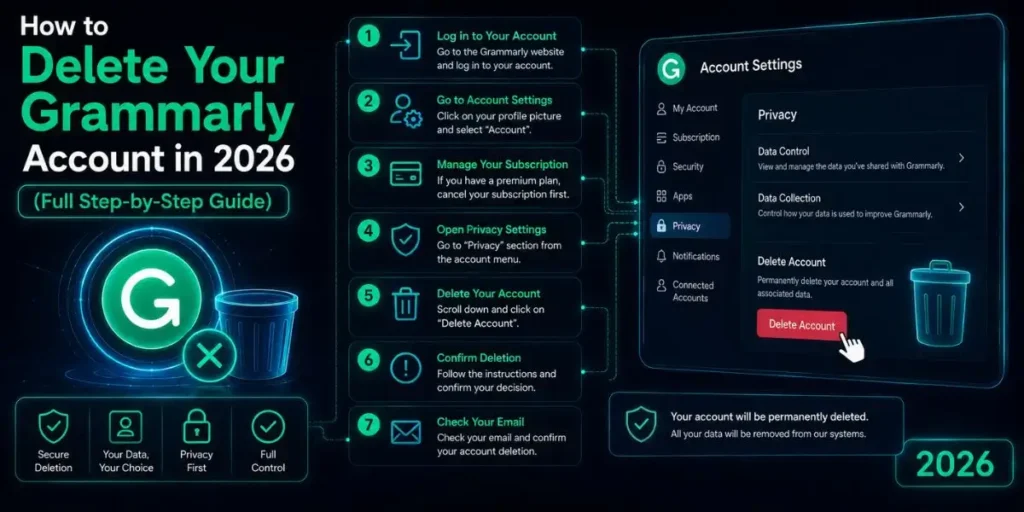
To delete your Grammarly account in 2026, sign in at grammarly.com, go to your Profile page, scroll to the bottom, and click “Delete Account.”
If you have an active paid subscription, you must cancel it or submit a support ticket first. Deleting your account is permanent and removes all saved documents and personal data.
Most people searching for this have hit a wall somewhere. Either they can’t find the delete button, they have a paid subscription that’s blocking the process, or they’re on the mobile app, and the option looks completely different.
This guide covers every scenario so you know exactly where to go and what to expect.
One thing worth knowing upfront: Grammarly is now part of Superhuman, a broader AI productivity suite that also includes Coda and Superhuman Mail.
If you signed up through Superhuman directly, the deletion process is different from the standard Grammarly account process. Both are covered here.
Table Of Contents
ToggleCancel vs. Delete: Which One Do You Actually Need?
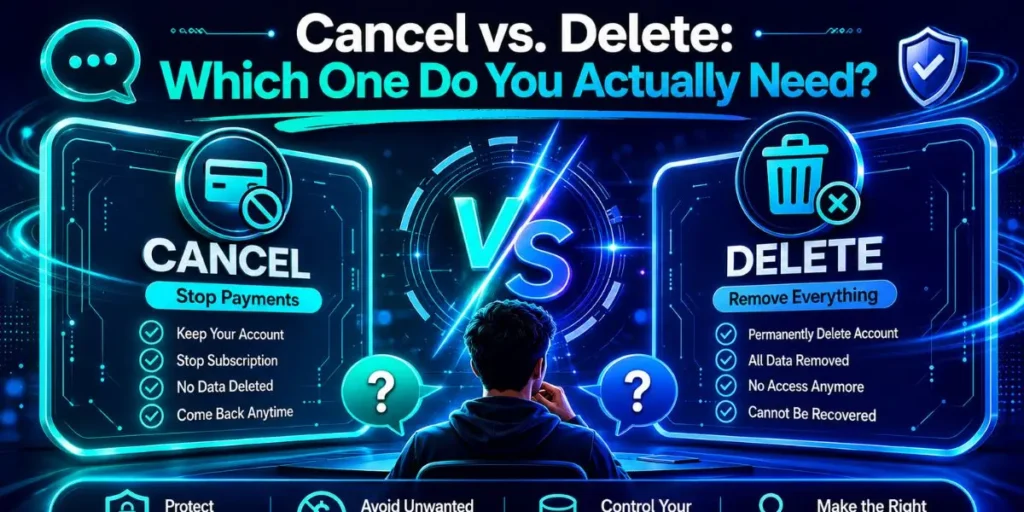
Most people confuse these two. They’re completely separate actions, and doing the wrong one first creates unnecessary hassle.
| Action | What It Does | When to Use It |
|---|---|---|
| Cancel Subscription | Stops future billing. You keep your account and data until the subscription period ends. | You want to stop paying but might use Grammarly again later |
| Delete Account | Permanently removes your account, personal info, and all saved documents. Cannot be undone. | You want to fully remove your data from Grammarly's servers |
If you only want to stop getting charged, go straight to the Cancel Subscription section below. You do not need to delete your account to stop payments.
But if you want your data permanently deleted, deletion is the correct option. Just make sure you cancel any active subscription first, because Grammarly won’t let you delete a paid account mid-cycle through the standard method.
Before You Delete: Back Up Your Documents
Deleting your account removes every document saved in the Grammarly Editor. Permanently. There’s no recovery after this. Before clicking anything, spend 2 minutes exporting your work.
- Sign in to your account at app.grammarly.com
- Open any document you want to keep
- Click the three-dot menu (top right of the document) and choose “Download as .docx” or copy the content manually.
- Repeat for each document you want to save.
You can also request a personal data report before deleting. Go to Account Settings and look for the data export option.
This gives you a full download of the personal data Grammarly holds on your account, which is useful if you want a record before you close everything down.
Important
Once the account is deleted, there is no grace period and no way to recover your documents. Grammarly support cannot restore a deleted account. Do the backup before you start.
How to Delete a Free Grammarly Account
This is the simplest scenario. No subscription to worry about.
1. Sign In to Your Account
Go to grammarly.com/signin and log in. Use the same method you used to sign up, whether that’s email/password, Google, or Apple. If you signed in with Google, you’ll need to select the correct Google account when prompted later.
2. Go to Your Account Settings
Once logged in, click your name or profile picture in the bottom-left corner of the Grammarly dashboard. Select “Account” from the menu. This opens your account settings page.
3. Find the Profile Page and Scroll Down
In Account Settings, navigate to the Profile tab. Scroll all the way to the bottom of the page. The Delete Account button sits at the very bottom, below all other settings. It’s intentionally placed there, not hidden, just out of the way.
4. Click “Delete Account”
A confirmation dialog will appear. It will remind you that this action is permanent and that all your documents will be deleted. Read it carefully, then confirm.
5. Verify Account Ownership if Prompted
In some cases, Grammarly will ask you to enter a 6-digit verification code sent to your registered email address. This is a security step to confirm you actually own the account before wiping it.
Check your inbox (and spam folder), enter the code, and the deletion will proceed.
6. Confirmation
Once confirmed, your account is deleted. You’ll be signed out and redirected. The deletion is immediate. Any browser extension or desktop app you have installed will no longer function since they require an active account to work.
Pro Tip
After deleting your account, manually remove the Grammarly browser extension and desktop app.
They won’t do anything without an account, but they still run in the background and consume resources. Uninstall them cleanly so nothing lingers on your device.
How to Delete a Grammarly Account with an Active Paid Subscription
This is where most people run into problems. Grammarly does not allow you to delete a paid account mid-subscription via the standard profile page. You get either a blocked page or an error.
Step 1: Cancel Your Subscription First
- Sign in and go to account.grammarly.com/subscription
- Scroll to the bottom of the Subscription page.
- Click “Cancel Subscription”
- Click “Yes, continue” in the confirmation pop-up.
- Choose a reason for cancellation and click “Cancel Subscription” again.
Canceling stops automatic renewal but does not end your current paid period immediately. You retain access to premium features until the subscription billing cycle ends.
After that, your account reverts to free, and you can then delete it using the standard method above.
Step 2: If You Want Immediate Account Deletion
If you don’t want to wait until the billing period ends, contact Grammarly support directly and submit a support ticket requesting account deletion while your paid subscription is still active.
Go to support.grammarly.com and open a ticket explaining your request. The support team handles these manually.
Refund Warning
Grammarly does not offer refunds when you cancel a subscription before it ends. Canceling stops future billing, but you will not receive a refund for the remaining subscription period.
If you purchased through the Apple App Store, you can try requesting a refund directly through Apple’s refund process, which operates separately from Grammarly’s own policy.
What If You Subscribed Through the Apple App Store?
If you subscribed via iPhone or iPad, you have to cancel through Apple, not Grammarly’s website.
Open your iPhone Settings, tap your name at the top, go to Subscriptions, find Grammarly, and tap Cancel Subscription. Once that’s done, you can go to Grammarly’s website to delete the account.
How to Delete a Grammarly Account That's Part of an Organizational Plan
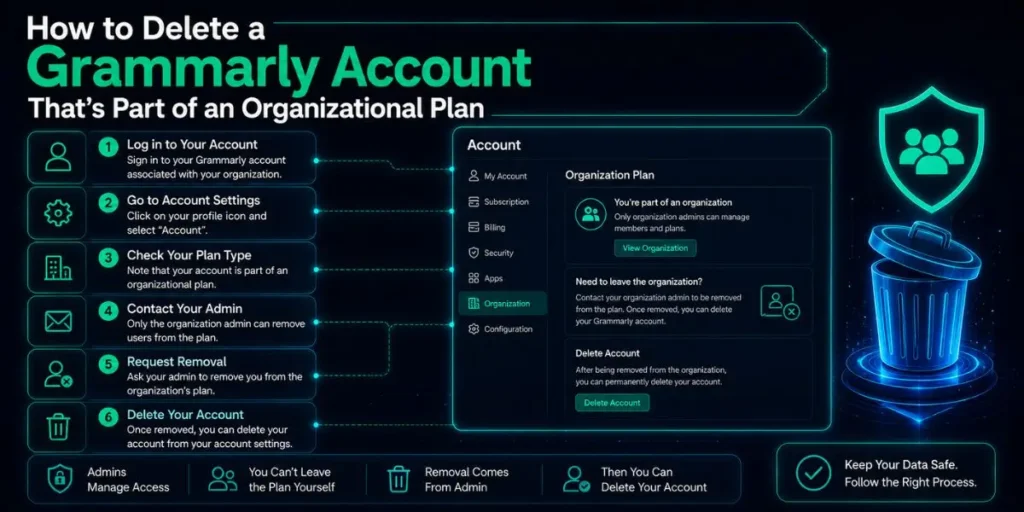
Honestly, this is the scenario most articles completely miss. If your Grammarly account was created through a workplace, school, or any team subscription, you cannot delete it independently.
The account belongs to the organization’s subscription. To proceed, you need to contact the admin of your organization’s Grammarly plan and ask them to remove you from the subscription first.
Once they remove you, the account is no longer tied to the organization, and you can then delete it yourself through the standard profile page method.
Note on Removal vs. Deletion
When an admin removes you from a team plan, your individual account is not automatically deleted. You still exist as a Grammarly user, just no longer on the paid organizational plan.
Any documents you created remain in your account. You then have to go and delete the account separately if that’s what you want.
Also worth knowing: if your organization uses SAML single sign-on, the admin also needs to unassign access to the Grammarly app in their identity provider (like Okta or Azure AD), not just remove you from the Grammarly Members page.
How to Delete a Grammarly Account on Mobile (iPhone and Android)
The mobile app doesn’t include a Delete Account button. The process goes through the browser.
On iPhone or iPad
- Open Safari or Chrome on your iPhone
- Go to account.grammarly.com and sign in.
- Tap Account from the menu.
- Navigate to the Profile tab and scroll to the bottom.
- Tap Delete Account and confirm
- Enter the 6-digit verification code sent to your email if prompted.
After deleting the account, also remove the Grammarly app from your iPhone.
Press and hold the app icon, tap “Remove App,” then “Delete App.” Additionally, go to Settings > General > Keyboard > Keyboards, and remove the Grammarly keyboard if you had it enabled.
On Android
- Open Chrome on your Android device
- Visit account.grammarly.com and sign in.
- Go to Account, then Profile, and scroll to Delete Account at the bottom.
- Confirm the deletion and verify your identity if asked.
To uninstall the Grammarly app from Android afterward, go to Settings, Apps or Application Manager, find Grammarly, and tap Uninstall.
Pro Tip
On mobile, if you keep getting redirected or the page won’t load the account settings properly, try switching to Desktop mode in your browser.
In Chrome on Android, tap the three-dot menu and check “Desktop site.” The full account settings page loads more reliably in that view.
What Happens If You're a Superhuman User?
This is a 2025-26 change that almost no competing guide mentions.
In October 2025, Grammarly’s parent company rebranded as Superhuman and now operates a suite of AI tools, including Grammarly, Coda, Superhuman Go, and Superhuman Mail.
If your Grammarly account is part of the Superhuman suite, you cannot delete it only from the standard Grammarly profile page.
Instead, you must email care@superhuman.com and specifically request deletion of your Superhuman-linked account.
This ensures removal from the entire suite if applicable, as the standard process does not always apply.t.
For Superhuman Mail specifically, the contact is hello@superhuman.com. And for Coda accounts, reach out to support@coda.io. Each product in the suite handles deletion through its own support channel, not a single unified button.
Billing Note
If you have a Superhuman suite subscription, canceling through your Grammarly account page will cancel your subscription across all other Superhuman suite applications.
One cancellation ends everything. Keep that in mind if you only want to cancel one product but keep others.
In My Experience
What Actually Trips People Up
The thing that surprised me most when going through this process was how often people delete the browser extension and think that’s the account deletion. It’s not even close.
Removing the Chrome extension just uninstalls a tool from your browser. Your Grammarly account, all your documents, and all your personal data are still sitting on their servers completely untouched.
I ran into an issue when testing the deletion flow on a paid account.
The Delete Account button was visible on the Profile page, but clicking it displayed a message stating that the account couldn’t be deleted while a paid subscription was active.
The problem was that the subscription cancel button wasn’t where most people expected it.
You have to go specifically to account.grammarly.com/subscription, not the general Account Settings page. Once I went there directly, the cancellation flow was clear.
Another thing that caught me off guard: the 6-digit verification code step. Not everyone gets prompted for it, but if Grammarly flags your deletion request as potentially suspicious, it adds this extra step.
The code is sent to your registered email address and expires quickly. Check your inbox immediately, and check spam if it doesn’t arrive within 2 minutes.
One thing most reviews don’t mention is the data export option.
Before deleting, you can request a full personal data report from Grammarly’s account settings.
It takes a few minutes to generate, but it’s a useful record to have, especially if you want confirmation of what they held on you before everything is wiped.
Common Mistakes When Deleting a Grammarly Account
- Uninstalling the app instead of deleting the account. Removing the Grammarly desktop app or Chrome extension does nothing to your account. Your data still lives on Grammarly’s servers. Always delete through the website.
- Trying to delete while a paid subscription is still active. The standard delete flow blocks this. Cancel the subscription at account.grammarly.com/subscription first, then come back and delete.
- Not downloading documents first. There’s no recovery after deletion. Any documents in your Grammarly Editor are gone permanently. Export them before you start.
- Using the wrong email to log in. If you signed up with Google, logging in with the same email via regular Grammarly login might take you to a different account. Always use the same login method you used when signing up.
- Forgetting the iPhone App Store subscription. If you subscribed via iPhone, canceling on the Grammarly website doesn’t cancel the App Store billing. You have to cancel separately through iOS Settings. Otherwise, you keep getting charged even after deleting your Grammarly account.
- Skipping the keyboard removal on mobile. After deleting your account and uninstalling the app on your iPhone, the Grammarly keyboard may still appear as an active keyboard option. Remove it manually in Settings > General > Keyboard > Keyboards.
What Happens to Your Data After Deletion?
Deleting your account removes your personal information from Grammarly, including documents saved in the Grammarly Editor. This is confirmed by their support documentation and Superhuman’s privacy policy.
If you want a record of your data before it’s deleted, you have two options. First, submit an access request for your personal data through Grammarly’s account settings.
Second, email privacy@superhuman.com for a data report, including “Data Request” in the subject line.
After the account is deleted, Grammarly may retain certain minimal data for legal and compliance purposes, which is standard practice under GDPR and CCPA.
But the personal writing data, documents, and identifiable profile information are removed.
Frequently Asked Questions
Not through the standard method. You need to cancel the subscription first at account.grammarly.com/subscription, then delete the account. Or submit a support ticket to request immediate deletion while the subscription is still active.
No, they are separate. If you delete your account without canceling first, you may still be billed. Always cancel the subscription before deleting the account to ensure billing stops correctly.
No. Account deletion is permanent. Grammarly support cannot restore a deleted account or recover documents that were saved in the Grammarly Editor. There is no grace period or undo option.
Open Safari on your iPhone, go to account.grammarly.com, sign in, go to Profile, scroll to the bottom, and tap Delete Account. If you subscribed via the App Store, also cancel billing separately in iPhone Settings> Subscriptions.
Uninstalling removes the app or extension from your device only. Your Grammarly account, documents, and personal data remain on Grammarly’s servers. To remove your data, you must delete the account through the Grammarly website.

Is an SEO Specialist and AI Tools Researcher with over 4 years of hands-on experience in search engine optimization. As the founder of Smart AI Helper Pro, he tests and reviews AI writing, SEO, and marketing tools to help creators and business owners grow faster with practical, research-backed strategies.