
How to Add Grammarly to Outlook (2026 Guide)
By SM Mehedi Hasan

To add Grammarly to Outlook, install the Grammarly desktop app for Windows or Mac, then open Outlook and start typing. The floating Grammarly widget automatically checks your email.
For Outlook on the web, use the Grammarly browser extension instead of the old, retired Office add-in.
If you searched this last year, half the advice you found is already broken. Grammarly quietly changed how it connects to Microsoft apps, and many popular guides still tell you to install something that no longer receives updates.
So this walkthrough sticks to what actually works in Outlook right now, on every setup, with the exact steps and the gotchas nobody warns you about.
Let me show you the right method for your version of Outlook first, then the step-by-step for each one.
Table Of Contents
ToggleHow Do You Add Grammarly to Outlook in 2026?

You add Grammarly to Outlook by installing the Grammarly desktop app for Windows or Mac, which places a floating writing widget inside your Outlook compose window.
The old Grammarly for Microsoft Office add-in is being retired, so the desktop app and the browser extension are now the supported paths.
Here is the part most articles skip. Grammarly used to ship a dedicated Office add-in that dropped a “Grammarly” tab into the Outlook ribbon. That add-in is on its way out and no longer receives security or feature updates.
Grammarly itself recommends moving to Grammarly for Windows, which works with Microsoft Office 2016 and newer on Windows 10 and 11.
And there is a second twist. “Outlook” is no longer one app. You might be using the classic desktop Outlook, the new Outlook for Windows, Outlook on the web, or the Outlook mobile app.
Each one needs a slightly different Grammarly method, which is exactly why people get stuck.
Which Grammarly Method Works for Your Outlook?
The right method depends entirely on how you open Outlook. Match your setup to the table below before you install anything, because picking the wrong one is the number one reason the widget never shows up.
| Your Outlook setup | Best Grammarly method | Works today? |
|---|---|---|
| Classic Outlook desktop (Windows) | Grammarley for Windows app | Yes |
| Outlook desktop on Mac | Grammarly for Mac app | Yes, with limits |
| New Outlook for Windows | Grammarly browser extension or app | Partly |
| Outlook on the web (browser) | Grammarly browser extension | Yes |
| Outlook mobile app (iOS/Android) | Grammarly Keyboard | Yes |
Most people on a work PC use classic desktop Outlook, so the Windows app is the path that works for the majority. But if your company moved you to the new Outlook or you use the browser version, scroll to that section instead.
Here is a tip worth setting up early: install Grammarly once on your main device and sign in, then it follows you across Outlook, Word, and your browser without separate logins each time.
How to Add Grammarly to Outlook on Windows (Step by Step)
- Go to the official Grammarly for Windows download page and click the download button to get the installer.
- Open the downloaded file from your Downloads folder and follow the on-screen prompts to finish installing.
- Wait for the Grammarly icon to appear in your system tray, in the lower-right corner of your screen near the clock.
- Sign in to your Grammarly account, or create a free one, so your settings and suggestions sync.
- Open classic Outlook and start a new email.
- Begin typing in the message body and watch for the floating Grammarly widget to appear in the bottom-right of the compose window.
Why this order matters: the desktop app is not an Outlook plugin in the traditional sense.
It runs quietly in the background and overlays its widget on top of whatever app you’re using. That is why you install it system-wide first, not from inside Outlook.
What you should see after step 6 is a small green or red circle showing your text score, plus underlines on anything Grammarly wants to fix. Click any underlined text, and it suggests the correction inline.
Click the widget circle, and you get tone, clarity, and rewrite options. If nothing appears, the most common cause is that you are typing in the new Outlook rather than classic Outlook.
The desktop app integrates most reliably with the classic version, so check which one you opened.
How to Add Grammarly to Outlook on Mac?
You add Grammarly to Outlook on Mac by installing the Grammarly for Mac desktop app, then opening Outlook and typing so the floating widget appears. Mac support has real limits, though, and this is where Mac users get burned.
- Download the Grammarly for Mac app from the official Grammarly desktop page.
- Open the downloaded file, follow the prompts to install, and then approve any macOS permission requests for accessibility.
- Look for the Grammarly icon in the menu bar at the top of your screen to confirm the app is running.
- Sign in to your account so suggestions and your personal dictionary load.
- Open Outlook on your Mac, start composing, and check for the floating widget in the message window.
The honest limitation: Grammarly discontinued its dedicated Microsoft Word add-in for Mac, and Outlook for Mac integration through the old add-in was never reliable.
The desktop app widget is now the way in, but you may see fewer inline checks than Windows users get.
If you write a lot of email on a Mac and the widget feels patchy, switch to Outlook on the web in Chrome or Safari and run the browser extension there. Email checking tends to be smoother in that combination.
How to Use Grammarly in Outlook on the Web?
You use Grammarly in Outlook on the web by installing the Grammarly browser extension, then opening outlook.com or outlook.office.com and composing as normal. This is the cleanest method if you never open a desktop app.
- Open your browser and go to the Grammarly browser extension page for Chrome, Edge, Firefox, or Safari.
- Click Add to Browser, then confirm the install when your browser asks for permission.
- Sign in to Grammarly via the small icon near your browser toolbar.
- Go to Outlook on the web and open a new message.
- Type your email and look for the Grammarly widget in the lower-right corner of the compose box.
The reason this works when the desktop app sometimes does not: Outlook on the web is just a website, and the browser extension was built to check text on any site.
The new Outlook for Windows is partly web-based under the hood, which is why the browser extension often helps there as well.
A practical note for shared or work computers. If your employer blocks browser extensions, the desktop app on classic Outlook is your fallback, since it installs at the system level rather than inside the browser.
How to Add Grammarly to the Outlook Mobile App?
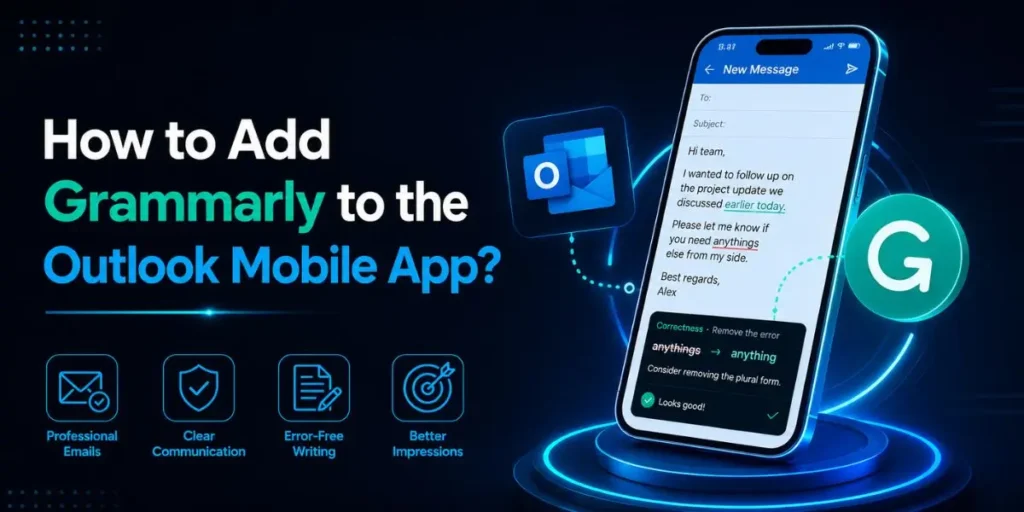
You add Grammarly to the Outlook mobile app by installing the Grammarly Keyboard, then setting it as your active keyboard so it checks text inside any app, including Outlook.
- Install the Grammarly app from the App Store on iOS or Google Play on Android.
- Open the app and follow the setup to enable the Grammarly Keyboard in your phone settings.
- Grant the keyboard the permissions it requests so it can check what you type.
- Open the Outlook mobile app and start a new email.
- Tap the message body, switch to the Grammarly Keyboard, and type to see suggestions appear above the keys.
This is genuinely useful for anyone who answers emails from a phone between meetings. The keyboard checks spelling and clarity as you tap, so a rushed reply still reads clean.
In My Experience
The thing that surprised me most was how many “current” guides still send people to the dying Office add-in.
When I tested the setup on a Windows 11 laptop with classic Outlook and Microsoft 365, the desktop app widget showed up the second I started a draft, no ribbon tab, no Grammarly menu, just the floating circle in the corner.
Honestly, it felt cleaner than the old plugin ever did. Where I hit a wall was the new Outlook for Windows. I expected the desktop app to overlay there the same way it does in classic Outlook, and it was inconsistent.
Switching to the same account in Outlook on the web with the browser extension fixed it immediately. So if you are troubleshooting a vanished widget, the version of Outlook you opened is almost always the culprit, not the install.
What Changed: Why the Old Grammarly Office Add-in No Longer Works
The old “Grammarly for Microsoft Office” add-in is being retired, so downloading it today is a dead end. This is the single biggest reason people follow a tutorial step by step and still end up with no Grammarly in Outlook.
Grammarly has confirmed it is winding down the Office add-in and that it will no longer receive security updates, feature updates, or technical support.
The official recommendation is to switch to Grammarly for Windows. On top of that, the Mac version of the Word add-in was discontinued outright. There is also a bigger shift behind the scenes.
Grammarly’s parent company rebranded as Superhuman in late 2025, and the product is now positioned as an AI writing assistant that lives across your apps through the desktop widget and browser extension rather than as a set of individual plugins.
That direction is why the floating widget, not the ribbon tab, is the future. So if a guide tells you to “check the Word and Outlook boxes during install,” you are reading outdated instructions.
The accurate move in 2026 is the desktop app or the browser extension, full stop.
Common Pitfalls When Adding Grammarly to Outlook
Most failed setups come down to a handful of repeat mistakes. Here are the ones I see most often, along with how to avoid each.
- Installing the retired Office add-in. It still appears in some search results, but it hasn’t been updated in a while and may stop working. Use the desktop app instead.
- Confusing classic Outlook with new Outlook. The desktop widget is most reliable in classic Outlook. If you are on the new Outlook, try the browser extension.
- Forgetting to sign in. The app installs fine, but shows nothing useful until you log in to your Grammarly account.
- Skipping Mac permissions. On macOS, Grammarly needs accessibility access. Deny it, and the widget stays silent.
- Expecting a ribbon tab. The modern app has no Outlook toolbar button. Look for the floating circle in the bottom-right corner, not a menu.
Each of these happens because the product changed faster than the tutorials did. Knowing the cause is half the fix.
Workflow Example: Adding Grammarly to a Work Email
Here is a realistic end-to-end run, the way it actually plays out on a typical work setup.
Input: A Windows 11 laptop with classic Outlook through Microsoft 365, and a free Grammarly account.
Process: Download Grammarly for Windows from the official site, run the installer, and wait for the tray icon to appear. Sign in with the free account. Open Outlook, hit New Email, and start typing the message.
Output: The floating Grammarly widget appears in the bottom-right of the compose window. Two words get a red underline for spelling, and one sentence gets flagged as wordy.
Result: Click each underline to accept the fix, click the widget to tighten the wordy line, and send a cleaner email in under a minute, all without leaving Outlook or copying text into a separate editor.
That full loop, install to polished send, takes about five minutes the first time and seconds on every email after.
Free vs Pro: What You Get Inside Outlook
A free Grammarly account works within Outlook, which catches many people off guard because they assume email checking is a paid feature. Here is how the two tiers compare specifically for email writing.
| Capability in Outlook | Free | Pro |
|---|---|---|
| Spelling and grammar fixes | Yes | Yes |
| Basic punctuation checks | Yes | Yes |
| Tone detection | Limited | Full |
| Full-sentence rewrites | No | Yes |
| Clarity and conciseness | Basic | Advanced |
For short internal emails, free is honestly plenty. Pro starts to matter when you write client-facing email all day and want the rewrite and tone tools to do real work on every message.
One more tip before the FAQs: turn on Grammarly’s tone detector if you send a lot of professional emails, because catching a reply that reads as cold before you hit send saves more awkward follow-ups than any spelling fix.
Frequently Asked Questions
Yes. A free Grammarly account checks spelling, grammar, and punctuation directly inside Outlook. Advanced features like full rewrites and full tone adjustment require a Grammarly Pro upgrade.
The usual cause is using the new Outlook instead of classic Outlook, or not signing in to the app. Open classic Outlook, confirm the tray icon is active, and log in to your account.
Partly. The desktop app is inconsistent in the new Outlook. The more reliable fix is using Outlook on the web with the Grammarly browser extension, since that version is browser-based.
It is being retired and no longer receives updates or support, so it may stop working. Switch to Grammarly for Windows or the browser extension for a supported, current setup.
Yes, through the Grammarly for Mac desktop app and its floating widget. Support is more limited than on Windows, so heavy email users may prefer Outlook on the web with the browser extension.

Is an SEO Specialist and AI Tools Researcher with over 4 years of hands-on experience in search engine optimization. As the founder of Smart AI Helper Pro, he tests and reviews AI writing, SEO, and marketing tools to help creators and business owners grow faster with practical, research-backed strategies.