
How to Turn On Grammarly in Google Docs (2026 Step-by-Step Guide)
By SM Mehedi Hasan
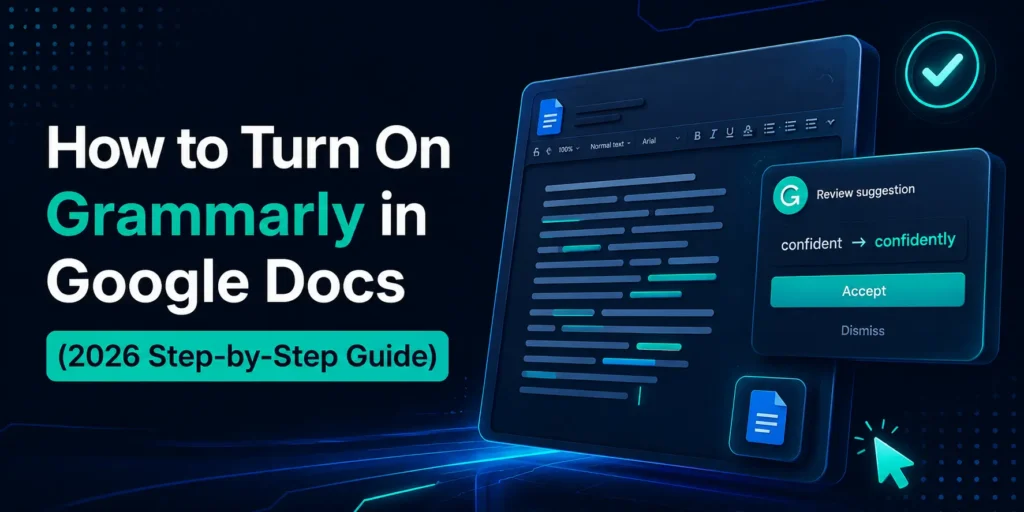
To turn on Grammarly in Google Docs, install the Grammarly browser extension in Chrome or Edge, sign in to your account, then open any Google Doc and click the green Grammarly icon to switch on “Check for writing suggestions on Google Docs.” Real-time suggestions appear instantly as you type.
If you write in Google Docs every day, having Grammarly check your work as you go saves a real amount of time. The setup is simple once you know where the actual on/off switch lives, and most people miss that part.
This guide walks through every step, the browsers that work best in 2026, and the small settings that trip people up.
Table Of Contents
ToggleWhat Do You Need Before Turning On Grammarly in Google Docs?
You need three things: a compatible desktop browser, a Grammarly account, and the Grammarly browser extension installed in that browser.
Google Docs doesn’t have a built-in Grammarly button, so the extension is what powers the whole thing.
Here is the short checklist before you start:
- A desktop or laptop running Chrome or Microsoft Edge (these get full support)
- A free or paid Grammarly account, which you can create during setup
- The Grammarly browser extension from the official store
- Google Docs opens in the browser, not the mobile app
One thing worth clearing up early. A lot of folks search for a “Grammarly add-on” expecting to find it inside the Google Docs Add-ons menu.
It is not there. Grammarly works through a browser extension that sits on top of the page, which is a different thing entirely. So if you have been hunting through Extensions inside Docs and finding nothing, that is why.
There is also a bigger change for 2026 that almost no setup guide mentions. Grammarly’s parent company rebranded to Superhuman in late 2025, folding Grammarly, Coda, and Superhuman Mail under one roof.
The writing assistant still keeps the Grammarly name and the same green icon, so nothing about the setup steps changes.
But the same extension now also carries an AI assistant called Superhuman Go, which I will cover later because it matters for privacy-conscious users.
How Do You Turn On Grammarly in Google Docs? (Step by Step)
- Install the Grammarly browser extension. Open the Chrome Web Store or the Edge Add-ons store, search for “Grammarly,” and click Add to Chrome (or Get). Confirm the permission pop-up. The extension downloads in a few seconds.
- Pin the extension to your toolbar. Click the puzzle-piece Extensions icon near your browser’s address bar, find Grammarly, and click the pin.
This keeps the green G icon visible so you can reach the settings later without digging.
- Sign in to your Grammarly account. Click the green G icon and log in, or create a free account if you do not have one. You stay logged in across sessions, so this is usually a one-time step.
- Open Google Docs. Go to docs.google.com and open a new or existing document. Make sure you are signed in to Google and the doc is online, not in offline mode.
- Turn on the actual setting. This is the step people skip. Click the green G icon in your toolbar, open its menu, and switch on “Check for writing suggestions on Google Docs.” Some builds list it as “Enable Grammarly in Google Docs” under Product Integrations. This toggle is the real on switch.
- Confirm it is working. Look at the lower-right corner of your document. You should see the round Grammarly icon there. Start typing a sentence with an obvious typo. A colored underline and a suggestion card mean Grammarly is live.
Why these steps run in this order matters. The extension gives Google Docs access to your text, the toggle grants permission to actually scan it, and the in-document icon confirms the connection is active.
Skip the toggle, and the extension sits there installed but silent, which is the most common reason people think Grammarly is broken.
Which Browsers Support Grammarly in Google Docs?
Chrome and Microsoft Edge give the best and most complete experience in 2026. Other browsers range from partial to frustrating, so picking the right one saves you a troubleshooting session later.
| Browser | Support Level | What to Expect |
|---|---|---|
| Chrome | Full | Best compatibility, all features, Superhuman Go available |
| Edge | Full | Chromium-based, works the same as Chrome |
| Brave / Opera | Mostly works | Chromium base helps, occasional quirks |
| Firefox | Limited | Extension exists but Docs support is patchy |
| Safari | Unreliable | Frequent "installed but not working" reports |
Most articles say Grammarly works on “all major browsers,” which is technically true but misleading. The extension installs nearly everywhere.
The deep Google Docs integration is a different story. When I helped a colleague who swore Grammarly was dead, the real problem was Safari, and switching to Chrome fixed it in under a minute.
How Do You Turn On Grammarly in Google Docs on a Mac?
On a Mac, use Chrome or Edge rather than Safari, then follow the same six steps above. The process is identical to Windows because Grammarly runs inside the browser, not inside macOS.
If you genuinely prefer Safari, you can install the Safari extension, but expect the icon to disappear or stop responding more often.
Honestly, I stopped recommending Safari for this after watching too many people refresh, restart, and reinstall with no luck. Chrome on Mac just behaves.
One note for Mac users: the old standalone Grammarly desktop app does not plug into Google Docs. Grammarly retired its standalone desktop editor apps back in 2024, so the browser extension is the only route for Docs.
Does Grammarly Work in the Google Docs Mobile App?
No, Grammarly does not work inside the Google Docs mobile app on iPhone or Android. Mobile browsers and apps do not support the extensions Grammarly relies on, so the green icon never appears there.
But you are not completely out of luck. Grammarly offers a mobile keyboard you can install on iOS and Android.
Once it replaces your default keyboard, it checks your writing system-wide, including in the Google Docs app, using a different mechanism than the desktop extension.
If you are drafting serious documents, my honest take is to do the heavy editing on a desktop.
The mobile keyboard catches typos and basic grammar, but the full suggestion sidebar, clarity rewrites, and tone feedback are available in the browser version.
Free vs Premium: What Actually Works in Google Docs?
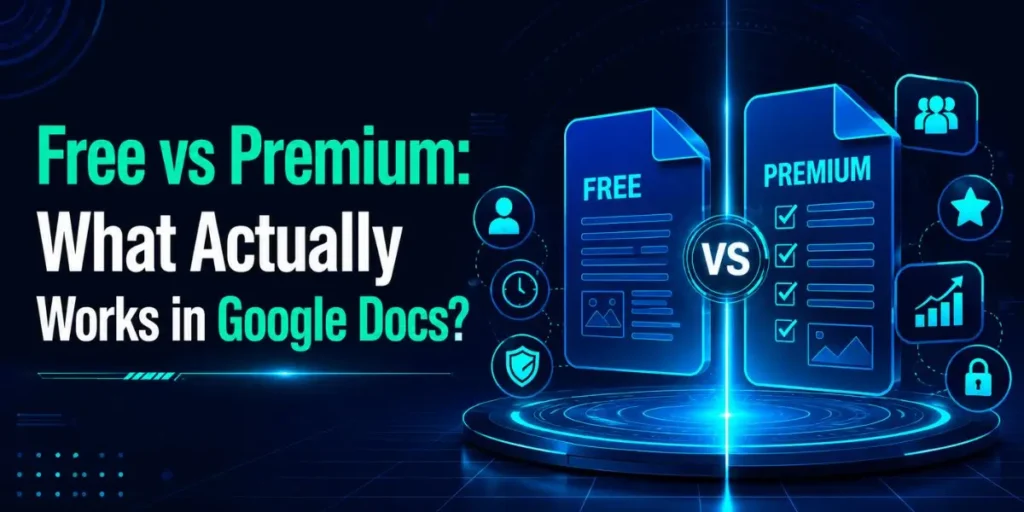
The free plan is built into Google Docs and covers the essentials, while the paid Pro plan unlocks deeper editing. Both use the same extension, so you do not need to reinstall anything when you upgrade.
| Feature in Google Docs | Free Plan | Pro Plan |
|---|---|---|
| Spelling and grammar | Yes | Yes |
| Punctuation fixes | Yes | Yes |
| Clarity and tone suggestions | Limited | Full |
| Rewrites and word choice | Basic | Advanced |
| Generative AI drafting | Limited | Full |
As of 2026, Grammarly’s Pro plan costs around $12 per month and includes additional Superhuman suite features beyond plain writing help.
If you only need clean grammar and spelling for school papers or work emails inside Docs, the free version genuinely handles that well.
The upgrade pays off when you are editing long-form content and want the clarity and rewrite suggestions.
In My Experience
Honestly, when I first set this up, I assumed the green icon appearing in my toolbar meant Grammarly was already scanning my Docs. It was not. I typed half a page of deliberately sloppy text and got nothing back.
The fix was the single “Check for writing suggestions on Google Docs” toggle, buried in the extension menu and off by default in my build.
After flipping it, the suggestion card snapped into the bottom-right corner and started flagging things in real time. The part that surprised me in 2026 was the Superhuman Go layer sharing the same extension.
It is more of a proactive assistant than a grammar checker, and it reads context from your screen to offer help.
That is useful, but if you write anything confidential in Docs, you will want to know that and disable it where sensitive information lives.
The setting is right there in the extension panel, and it is worth two minutes to review before you trust it with client work.
What Are Common Pitfalls When Turning On Grammarly in Google Docs?
Most setup failures come down to a handful of repeat mistakes. Here are the ones I see again and again, and why they happen.
- Skipping the Docs toggle. The extension installs and signs in fine, so people assume they are done. The “Check for writing suggestions on Google Docs” switch is separate, and it is the actual trigger. Flip it on.
- Using the wrong browser. Safari and Firefox are the main culprits behind most “it says installed but does nothing” complaints. Switch to Chrome or Edge before blaming the extension.
- Forgetting to refresh. Google Docs needs to reload the page after you change extension settings. Refresh the tab, or the icon may stay grayed out.
- Running two grammar tools at once. LanguageTool, ProWritingAid, or a second checker can clash with Grammarly, canceling both out. Disable the extras and test.
- Working offline. Grammarly needs Docs to be online. If you are in offline mode, suggestions stop appearing entirely.
- Blocking it in incognito. The extension does not run in private windows unless you explicitly allow it in the extensions settings.
So if Grammarly went quiet, run down this list before reinstalling. Nine times out of ten, the culprit is the toggle or the browser, not a real bug.
Workflow Example: Turning On Grammarly for a Real Document
Here is a realistic run-through using a student writing an essay in Google Docs.
Input: Sarah has Chrome installed and a free Grammarly account, but no extension yet. She needs grammar checking for a five-page paper due tomorrow.
Process: She opens the Chrome Web Store, adds the Grammarly extension, and pins it. She clicks the green icon, signs in, and then opens her essay in docs.google.com. In the extension menu, she switches on “Check for writing suggestions on Google Docs” and refreshes the tab.
Output: The round Grammarly icon appears in the lower-right corner of her document. As she edits, red and blue underlines mark errors, and a card on the right suggests fixes she can accept with one click.
Result: Sarah catches a dozen typos, three run-on sentences, and a handful of clarity issues in about ten minutes, all without leaving Google Docs or copy-pasting into a separate editor.
That full loop, from zero to live suggestions, takes under five minutes once you know the toggle exists.
Pro Tips for Using Grammarly in Google Docs
- Pin first, always. Before anything else, pin the extension. Reaching settings later is far easier when the icon is parked on your toolbar instead of hidden behind the puzzle-piece menu.
- Test with a junk sentence. Whenever you are unsure if it is on, type “they’re going to the store” and watch for underlines. Faster than digging through settings to confirm.
- Mute it per site, not globally. If Grammarly distracts you on certain docs, turn it off for that page in the extension rather than disabling the whole thing. You keep it ready everywhere else.
How Do You Fix Grammarly Not Showing Up in Google Docs?
Re-enable the Docs setting first, since that resolves most cases. Click the green icon, switch “Check for writing suggestions on Google Docs” off and then on again, and the icon should reappear in the lower-right corner.
If that does not work, run through these in order:
- Confirm the extension is enabled at chrome://extensions
- Refresh every open Google Docs tab, or restart the browser.
- Make sure you are signed in to Grammarly and that Docs is online.
- Disable other grammar or content-blocking extensions, then test
- Try an incognito window with only Grammarly allowed.
- As a last resort, uninstall and reinstall the extension.
Compared to the older versions I used a few years back, the 2026 extension recovers faster after a simple toggle-and-refresh. Reinstalling is rarely necessary now.
Frequently Asked Questions
Yes. The free plan works in Google Docs and covers spelling, grammar, and punctuation. The Pro plan, around $12 per month, adds clarity rewrites, tone suggestions, and advanced features.
Usually, the “Check for writing suggestions on Google Docs” toggle is off, or you need to refresh the tab. Switch the toggle on, reload Docs, and confirm you are using Chrome or Edge.
No, not through the app. Browser extensions do not run on mobile. Install the Grammarly mobile keyboard instead, which checks writing system-wide, including inside the Docs app.
No. The free version turns on and handles core grammar and spelling. Premium only matters if you want advanced clarity, rewrites, and tone feedback for longer documents.
Grammarly’s parent company rebranded to Superhuman in 2025, but the Grammarly writing assistant keeps its name and works the same. The browser extension now includes the Superhuman Go AI assistant.

Is an SEO Specialist and AI Tools Researcher with over 4 years of hands-on experience in search engine optimization. As the founder of Smart AI Helper Pro, he tests and reviews AI writing, SEO, and marketing tools to help creators and business owners grow faster with practical, research-backed strategies.